Setting up Microsoft Outlook

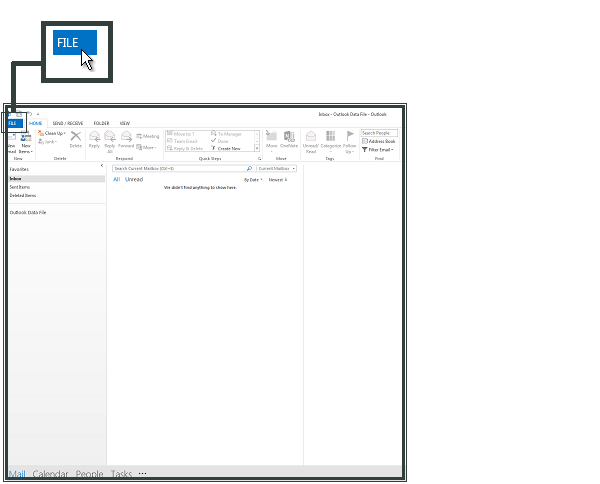
Open Outlook and select File.
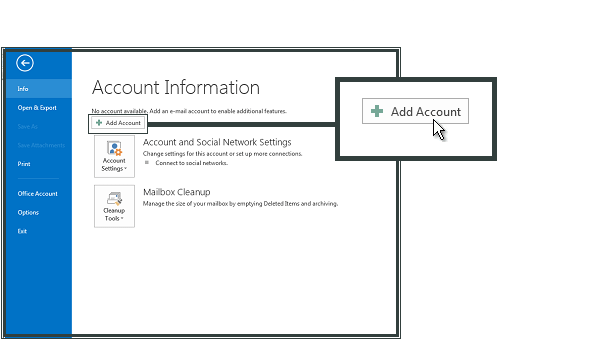
Click Add Account.
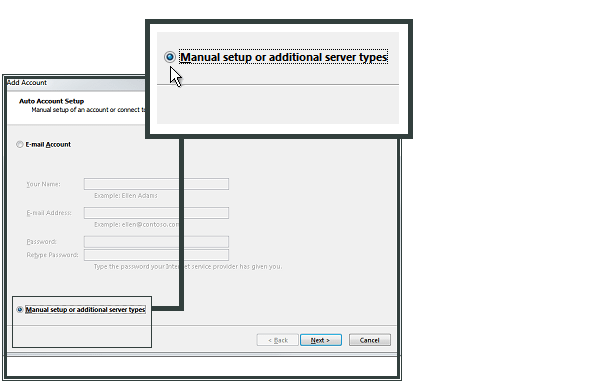
Check Manual setup or additional server types and click Next.
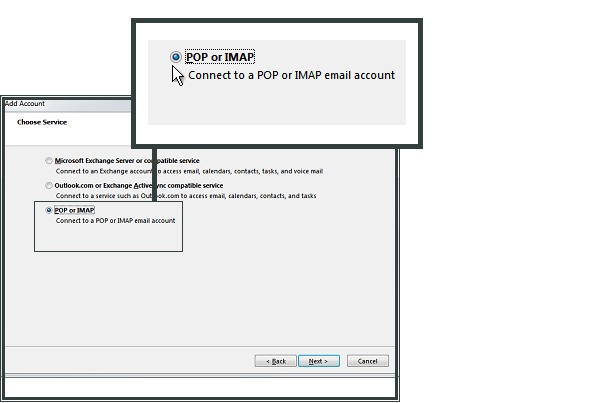
Select POP or IMAP and click Next
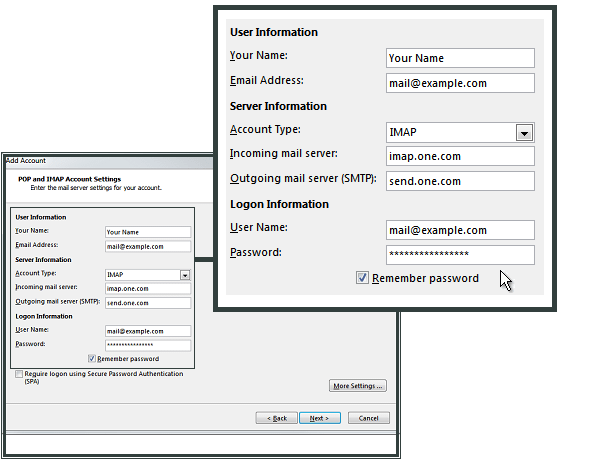
Enter Your Name and E-mail Address.
Select IMAP as your account type.
For Incoming mail server (IMAP), enter mail.yourwebsite.com.
For Outgoing mail server (SMTP), enter mail.yourwebsite.com.
In Logon Information enter the e-mail address and password.
Click More Settings.
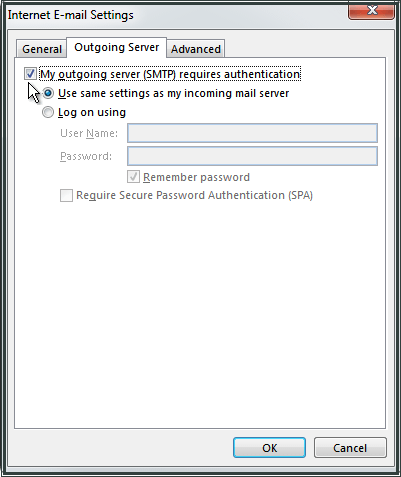
Select Outgoing Server and check My outgoing server (SMTP) requires authentication.
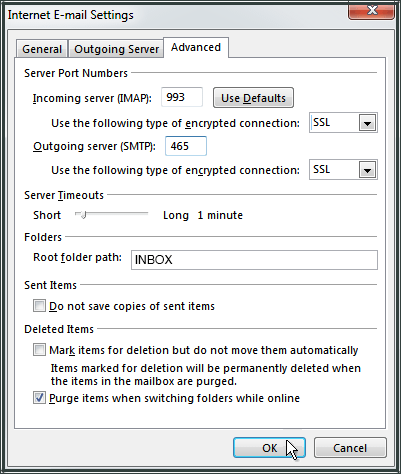
Select Advanced.
For Incoming server (IMAP) enter 993 and select SSL.
For Outgoing server (SMTP) enter 465 and select SSL.
For Root folder path enter INBOX with uppercase letters.
Click OK and then Next.
Click Close.
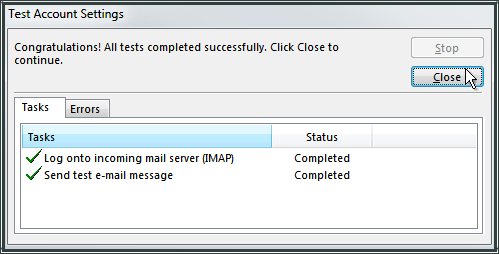
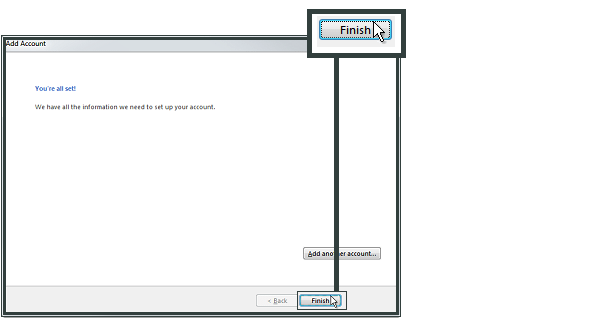
You have now set up your account in Microsoft Outlook 2013. Click Finish.